
A useful dashboard follows the team's workflow.
Design statuses, ownership, and next steps before adding more charts.
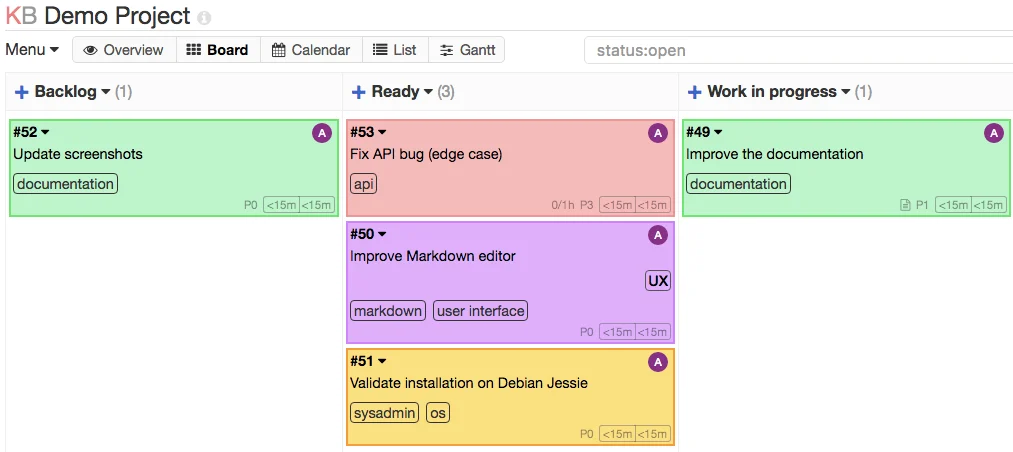
A dashboard can become a busy collection of numbers that rarely helps anyone work. Its value comes from helping people understand the situation, recognize what needs attention, and take action using the same information.
Start with everyday decisions
Ask which decisions each role makes. An administrator may need to check incomplete records, while an operator needs the next item in a queue. People do not automatically need the same overview just because they use the same system.
Define statuses clearly
Agree on what waiting, in progress, complete, and cancelled mean. Decide who can change each state and what information is required during a transition. Consistent labels help a team understand work without searching through another conversation.
Connect a summary to an action
- Number. Explain what is counted and the relevant period or scope.
- Records. Provide a route to the underlying records with an appropriate filter.
- Follow-up. Offer actions appropriate to the user's role and the work's status.

Show context and data freshness
Numbers need a clear period, unit, and source. Show when data was updated and distinguish an empty result from a failed request. When using demo data, explain that values are simulated so they are not mistaken for operational results.
Connect the overview to the work
Let users open relevant detail from a summary. Preserve filters when they return and show the result of changes they just made. An activity history helps a team understand who changed something and when.
Separate summaries from working views
Business owners and team members do not necessarily need the same opening view. A summary can explain the overall situation, while the people doing the work need tasks, relevant details, and a next action. Identify the decisions each role makes before selecting dashboard components.
If a number needs follow-up, provide a route to the records behind it. A count of pending requests, for example, can lead to an appropriately filtered list. This makes the summary a starting point for work rather than a decoration disconnected from operations.
Give statuses an operational meaning
Statuses such as new, in progress, and complete need shared definitions. Establish who can change them, what information is required, and who receives the work next. Color can help scanning, but a text label should communicate the meaning without relying on color alone.
Include waiting, returned, or cancelled states when the process needs them. Do not add statuses simply to make a diagram look complete. Each one should explain the condition of the record and the actions available to the user.
Define each status change
- Owner. Who can change the status and owns the next step?
- Conditions. What information or approval is required before work can move?
- History. What record helps the team understand who changed what and when?
Design empty states and recovery
A new dashboard may have no data. Explain a useful first step instead of showing empty panels without context. Distinguish an account with no records from a search with no matches or a failed data request, since each condition calls for a different response.
When saving fails, preserve the entered information and explain how to retry. Important actions may need confirmation and a history that helps people trace changes. These details are often absent from the main mockup, yet they shape the team's confidence when using the application every day.